Settings
The Settings page includes the Appraise sync dashboard.
The Sync page is available in AppraiseJS 0.2 and later.
Open Settings -> Sync to review what is out of sync between the filesystem and the database, then run the required synchronization directly from the UI.
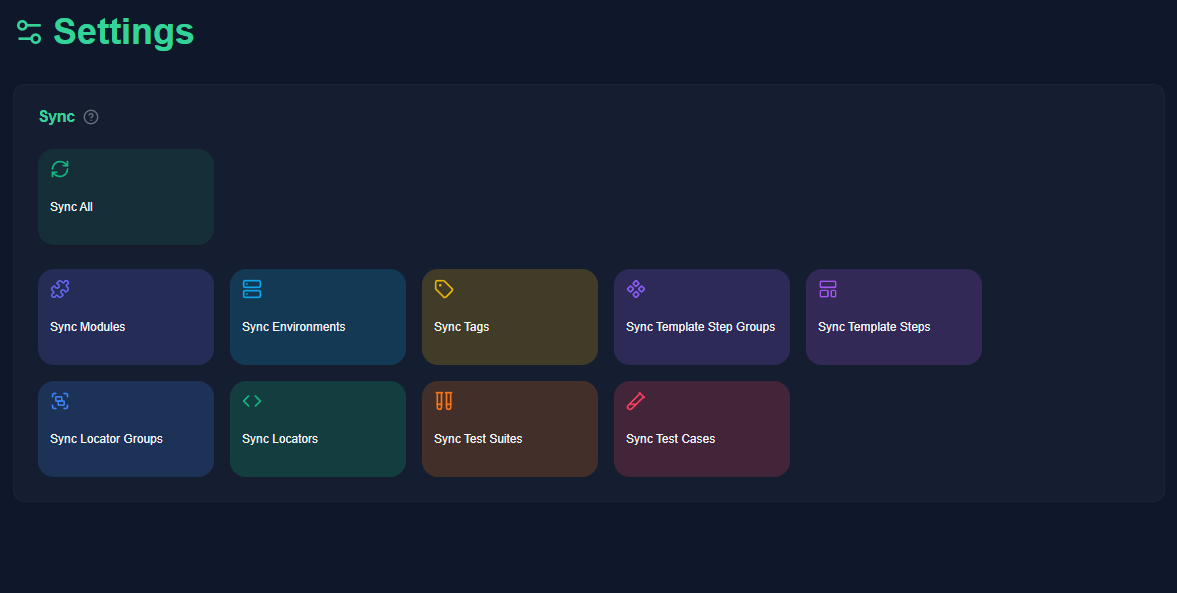
The Settings page opens with a single Sync panel. In the idle state shown here, Sync All sits above the main grid and the per-target sync actions are grouped into color-coded tiles below it.
What it does
Section titled “What it does”Each sync tile represents one sync target:
- Modules
- Environments
- Tags
- Template Step Groups
- Template Steps
- Locator Groups
- Locators
- Test Suites
- Test Cases
Appraise compares the current filesystem state with the database state and shows a numeric badge on each tile. The badge is the number of detected differences for that sync target.
The Sync All tile shows the total number of pending differences across all targets.
When there are no pending differences, the dashboard can appear without badges, as shown in the screenshot above.
Layout overview
Section titled “Layout overview”The Sync dashboard is arranged for quick scanning:
Sync Allis pinned first because it is the broadest reconciliation action.- The remaining tiles are grouped in a left-to-right grid for focused sync runs.
- The panel stays inside
Settings, so maintenance tasks remain separate from entity authoring screens.
How it works
Section titled “How it works”When you start a sync from the UI, Appraise runs the requested sync task from the app.
If that task depends on other sync targets, Appraise runs the prerequisites automatically in the correct order.
For example:
Sync LocatorsrunsSync Locator Groupsfirst.Sync Test Casesmay runSync Test Suites,Sync Template Steps, andSync Tagsfirst.
This removes the need to remember script order manually and makes sync safer after filesystem changes.
What you see after sync
Section titled “What you see after sync”After a sync completes:
- Appraise refreshes the pending counts.
- A success message confirms what ran.
- If a sync fails, Appraise shows which sync target failed and the most relevant error message.
When to use it
Section titled “When to use it”Use Settings -> Sync when:
- Files changed outside the Appraise UI.
- Database records look outdated.
- Locators, test suites, or test cases appear out of sync.
- You want one controlled place to run synchronization without using scripts manually.