
Troubleshooting
Recovery
Use this page when AppraiseJS does not behave the way the onboarding path promised. Start from the symptom you see, then move to the most likely cause and the shortest fix.
Before you begin
Section titled “Before you begin”- Capture the exact screen or command that failed.
- Confirm whether the problem happened during installation, authoring, execution, reports, or sync.
- Keep the failing run name or page open so you can compare after the fix.
What you’ll finish with
Section titled “What you’ll finish with”A shorter path to the correct fix
The goal here is not to memorize internals. It is to get you back to a known-good state quickly enough that you can continue the onboarding path.
Step-by-step procedure
Section titled “Step-by-step procedure”Symptom: Setup or first launch failed
Section titled “Symptom: Setup or first launch failed”- Likely cause: database migrations or browser dependencies were not installed cleanly.
- What to do:
- Run
npm run migrate-db. - If errors persist, run
npm run install-playwright. - Restart the app after both steps.
- Run
- If this did not fix it: delete the local
prisma/dev.dbfile (if present), then re-run migrations. - What good looks like: AppraiseJS starts locally and the first page loads without setup warnings.
Symptom: A run starts but no tests are selected
Section titled “Symptom: A run starts but no tests are selected”- Likely cause: the wrong selection mode was chosen or the intended tags/cases were not actually attached.
- What to do: reopen the run setup and confirm whether you meant
By TagsorBy Test Cases, then verify the targeted cases carry the expected tags. - What good looks like: the run details page shows the scope you expected.
Symptom: Navigation or environment behavior looks wrong
Section titled “Symptom: Navigation or environment behavior looks wrong”- Likely cause: the selected environment has the wrong base URL or the target application is unavailable.
- What to do: recheck the environment record and verify the application is reachable outside AppraiseJS.
- What good looks like: navigation-based steps land on the expected route for the selected environment.
Symptom: Steps fail because elements cannot be found
Section titled “Symptom: Steps fail because elements cannot be found”- Likely cause: locators are stale, overly brittle, or tied to the wrong route.
- What to do: revisit Locators, re-capture the selector, and confirm the locator group route still matches the page.
- What good looks like: the same step can resolve the target element on a rerun.
If the issue repeats after re-capturing locators, validate whether the page structure or route has changed significantly. In such cases, treat it as a test design issue rather than a locator issue.
Symptom: Reports look empty or disconnected from the run
Section titled “Symptom: Reports look empty or disconnected from the run”- Likely cause: the run failed before producing usable Cucumber output, or the artifact path is missing.
- What to do:
- Open run logs first and confirm whether execution actually started.
- Check whether the run reached report generation.
- Verify that report artifacts exist in the expected path.
- If this did not fix it: re-run the same test with a minimal scope (single test case) to confirm whether the issue is with execution or reporting.
- What good looks like: the report list contains a new entry linked to the run you just executed.
Symptom: Entities look outdated after pulling or editing files
Section titled “Symptom: Entities look outdated after pulling or editing files”- Likely cause: filesystem and database state drifted apart.
- What to do:
- Open
Settings -> Syncand run the relevant sync tile orSync All. - Wait for pending counts to stabilize.
- Open
- If this did not fix it: run
npm run sync-allfrom CLI and refresh the UI. - What good looks like: pending counts drop and the expected entities appear consistently in the UI and generated artifacts.
The sync dashboard is the main recovery screen that benefits from visual confirmation. Show it exactly where stale-data recovery is described so users can compare the page they see against the correct fix path.
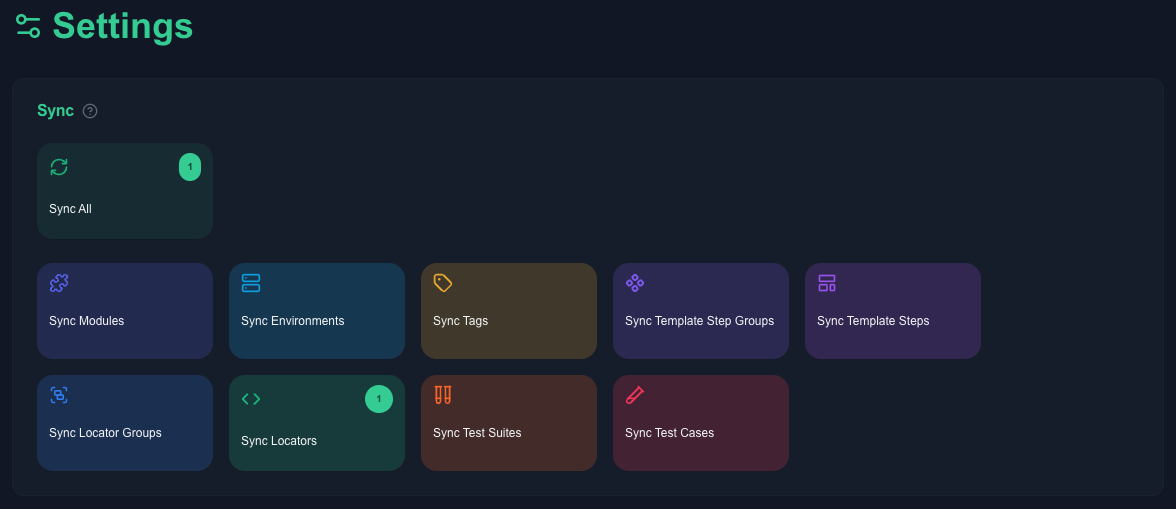
If the screen does not look like this once visited, the user should follow the CLI recovery path instead of assuming they are already on the right page.
Checkpoint
Section titled “Checkpoint”- You can describe the symptom in one of the categories above.
- You know the first page or command to use for recovery.
- You can re-run the failing workflow and confirm the issue is resolved (or narrowed down further).
Common mistakes
Section titled “Common mistakes”- Changing multiple things at once before isolating whether the issue is setup, selection, locators, or sync.
- Re-running immediately after file edits without using
Settings -> Sync. - Treating an empty report as a report bug before reading run logs.
- Debugging the wrong environment because the record name looked familiar but the base URL changed.
- Assuming a fix worked without re-running the exact same failing scenario.
Next step
Section titled “Next step”You have now completed the onboarding path and are ready to start creating and running tests. Alternatively, you can learn more about the architecture of AppraiseJS from the Architecture Overview page. You can also view the step reference documentation for more details on the different steps and their parameters at Step References.